A Bricks Query Loop is great at displaying posts. What it cannot do on its own is let visitors narrow that list down. There is no filter UI in Bricks, so the moment a client asks for “filter the listing by category and price, without reloading the page”, you are looking at either a third-party plugin that ignores your design system, or a few hundred lines of your own JavaScript. A Bricks AJAX filter built from native elements avoids both.
This guide builds a working AJAX filter for any Bricks Query Loop using the Djia Filters module: checkboxes for a taxonomy, a price range slider, a keyword search, active filter tags and a reset button. No page reloads, the URL stays in sync, and every element is a Bricks element you style with your own classes.
Can you filter a Bricks Query Loop without a plugin?
Only partially. As the official Bricks Query Loop documentation shows, Bricks lets you pass query arguments to a loop, so you can read a URL parameter and filter server-side. That works, but every filter click is a full page load, you write the parameter handling yourself, and you still have to build the UI, the active-state display and the result counts by hand.
For an AJAX filter — results updating in place, URL updating without a reload, browser back button still working — you need something that hooks the query and returns rendered markup over AJAX. That is what a filter module does.
What we will build
A filterable listing of a custom post type called listing (the same steps work for posts, products or any public CPT):
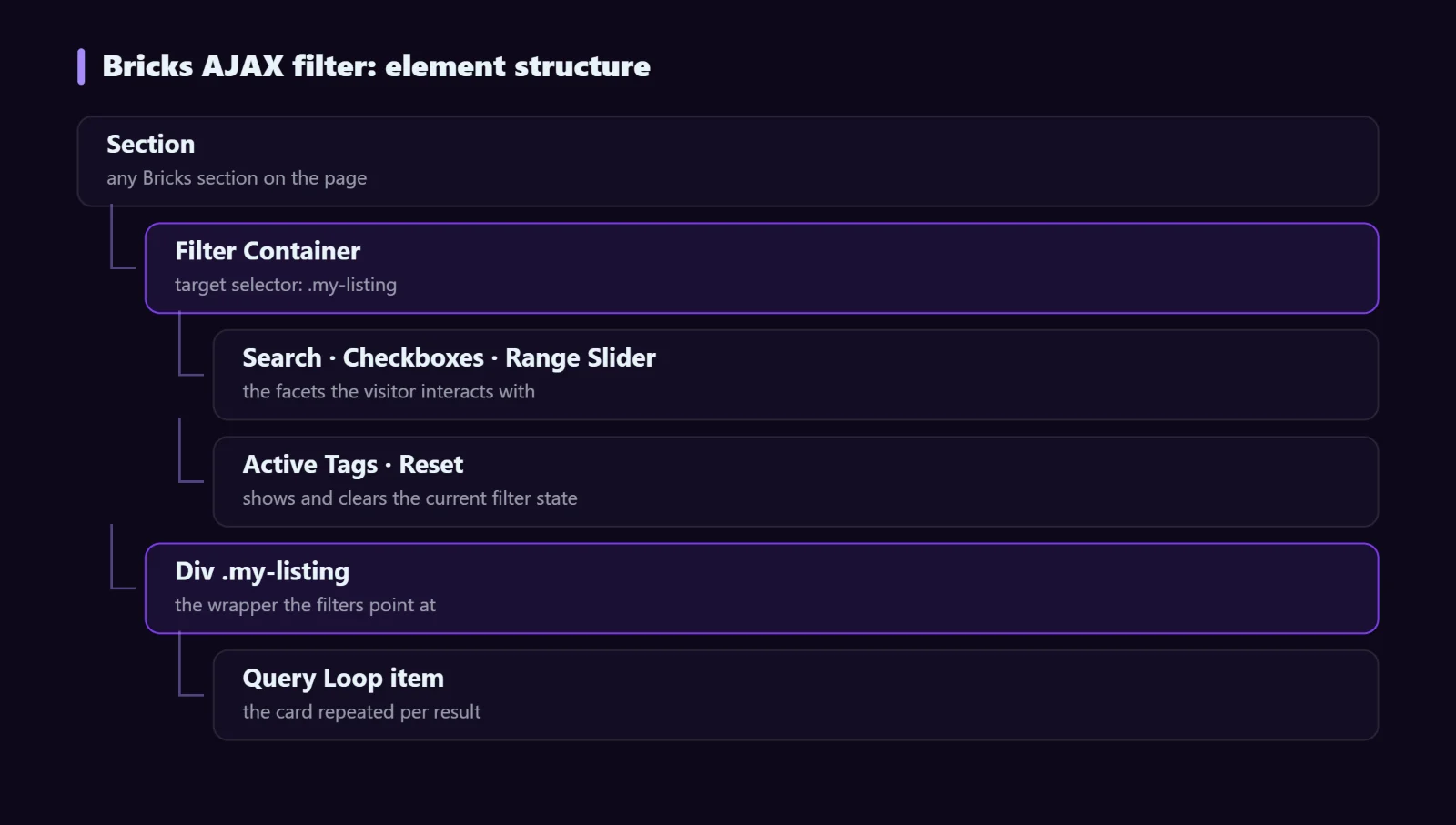
The important part of that tree is the relationship between the two halves: the Filter Container points at the listing wrapper by CSS selector. Nothing else connects them, which means you can place the filters anywhere on the page — a sidebar, a top bar, an offcanvas panel on mobile.
Step-by-step: building a Bricks AJAX filter
1. Give your Query Loop a class to target
Select the wrapper element that contains your Query Loop — the grid or container, not the looping item itself — and give it a plain CSS class such as my-listing. The filters need a stable selector to aim at, and an auto-generated Bricks ID will change if you rebuild the element.
If you are not comfortable with query loops yet, start with the Bricks Query Loop guide and come back.
2. Enable the Filters module
In the WordPress admin, open the Djia Bricks modules panel and switch on Djia Filters. Modules you leave off register nothing and load no assets, so a site that only uses filters never ships the WooCommerce or forms code.
3. Add the Filter Container and point it at the listing
Drag the Filter Container element onto the page and set its target selector to .my-listing. Every filter element you put inside this container now acts on that listing. You can have more than one container on a page if you have more than one listing.
4. Add the filter elements
There are 15 filter elements. For this build, drop four of them inside the container and configure each:
- Search — keyword search across post title and content. The debounce delay is configurable so you are not firing a request on every keystroke.
- Checkboxes — pick filter type Taxonomy and choose your taxonomy. Turn on result counts per term, and decide whether multiple checked terms mean AND or OR.
- Range Slider — pick filter type Meta / Custom Field and enter the meta key, or Woo Price on a shop archive, where the min and max boundaries are detected automatically.
- Active Tags — renders every applied filter value as a removable tag. This is the single element that does most for usability, because visitors can see and undo what they applied.
Then add Reset / Clear All below them. All four are ordinary Bricks elements, so spacing, typography, colors and your global classes apply exactly as everywhere else.
5. Build the index
This step is optional for a small listing and important for a large one. Open Djia Bricks → Index and run the index builder for your post type, or use WP-CLI:
# Build the index for a post type
wp djia index rebuild --post-type=listing

# Check what is indexed
wp djia index status
The index is a flat table of the filterable values. Without it, each filter interaction runs live taxonomy and meta JOINs; with it, the filter query reads one table. It rebuilds itself when posts are saved or deleted, so you run this once.
6. Test the URL, not just the clicks
Apply two filters, then copy the URL into a new tab. The listing should load already filtered. Then press the browser back button — it should step back through the filter states rather than leaving the page. This is the part people forget to check, and it is what makes filtered listings shareable and indexable.
The 15 filter elements at a glance
| Element | Use it for |
|---|---|
| Checkboxes / Radio / Select | Taxonomy or meta, multi or single select |
| Color Swatch / Image Swatch | Visual term filtering — color, fabric, pattern |
| Range Slider / Min-Max Input | Price or any numeric meta field |
| Search | Keyword across title and content |
| Sort / Order | Date, title, price or any meta key |
| Active Tags / Reset | Showing and undoing the current state |
| Apply Button | Manual mode — hold results until clicked |
| Toggle Button / Filter Group | Button-group UI, collapsible sections |
| Offcanvas Panel | Mobile slide-out filter drawer |
Nine filter types, including custom fields
Each element is wired to a filter type: Taxonomy, Meta / Custom Field, WooCommerce Attribute, Woo Price, Woo Stock Status, Woo Rating, Keyword Search, Sort / Order, and Conditional Logic. The meta type reads values written by ACF, Meta Box and Pods, so a real-estate or directory site filters on the fields it already has rather than on a parallel set.
Conditional Logic is worth a mention because it is easy to miss: it shows or hides one filter based on another filter’s active state. A “number of bedrooms” facet that only appears once the visitor has chosen “House” keeps the panel short without hiding anything they need.
Bricks AJAX filter performance on large catalogues
Two mechanisms do the work. The index removes the live JOINs. On top of that, AJAX responses are cached per URL state in a shared anonymous cache, so the second visitor to apply the same combination gets the stored response with no database queries at all.
| Setting | Default | What it does |
|---|---|---|
cache_ttl | 3600s | How long a cached filter response lives |
cache_driver | transients | Transients, or your object cache (Redis, Memcached) |
ajax_debounce | 300ms | Delay before a change fires a request |
url_mode | pushState | pushState keeps back-button history; replaceState does not |
index_batch | 200 | Posts processed per indexing batch |
If you run a persistent object cache, point cache_driver at it. On a shared host without one, transients are fine. To clear everything after a bulk import:
wp djia cache flushTroubleshooting
Clicking a filter does nothing
The target selector does not match. Inspect your listing wrapper in the browser and confirm the class is actually on the element you think it is — in Bricks it is easy to put the class on the looping item instead of the wrapper that contains it.
Results update but counts are wrong
The index is stale, usually after importing posts directly into the database, which skips the save hooks. Run wp djia index rebuild for that post type.
Filters work for me but not for logged-out visitors
Check your page cache. A full-page cache that serves a stored HTML copy is fine — the filter requests go out over AJAX and are not cached as part of the page — but an aggressive JavaScript optimiser that defers or combines scripts can break the handler. Exclude the filter script and retest.
The back button leaves the page instead of undoing a filter
url_mode is set to replaceState, which overwrites the current history entry instead of adding one. Switch it to pushState.
FAQ
Does this work with custom post types?
Yes — any public post type with its taxonomies and meta fields. WooCommerce-specific facets such as price, stock and rating apply to products only, because they read WooCommerce’s own meta.
Can I filter more than one listing on the same page?
Yes. Add a Filter Container per listing and give each one its own target selector.
Do I need to write any JavaScript?
No. The AJAX request, the URL state and the result rendering are handled by the module; you configure which taxonomy or meta key each element reads from the Bricks controls panel.
Will filtered URLs get indexed by Google?
They can be, and usually you do not want hundreds of filter combinations in the index. Keep canonical tags pointing at the unfiltered archive, and let Google crawl the clean URL. A handful of genuinely useful combinations — a popular category plus a city, say — are worth their own landing page with real copy instead.
Next steps
Djia Filters is one of 15 modules in Djia Bricks, included in every licence. See the full element and type list on the Djia Filters page, read the filter documentation for index and cache details, or pick a licence and build it today. If your listing is a WooCommerce shop, the WooCommerce product filter guide covers attributes, price and stock specifically.