Most pages are built for one visitor and then shown to everyone. The logged-out visitor sees the member dashboard link, the customer who already bought sees the sales pitch, the mobile visitor loads a desktop-sized hero they will never see. Bricks Builder conditions fix that: each element decides for itself whether to render.
Bricks has native conditions covering the common cases. The Conditions module adds 50+ further rule types, with AND/OR logic between them, configured from the same conditions panel.
How Bricks Builder conditions work
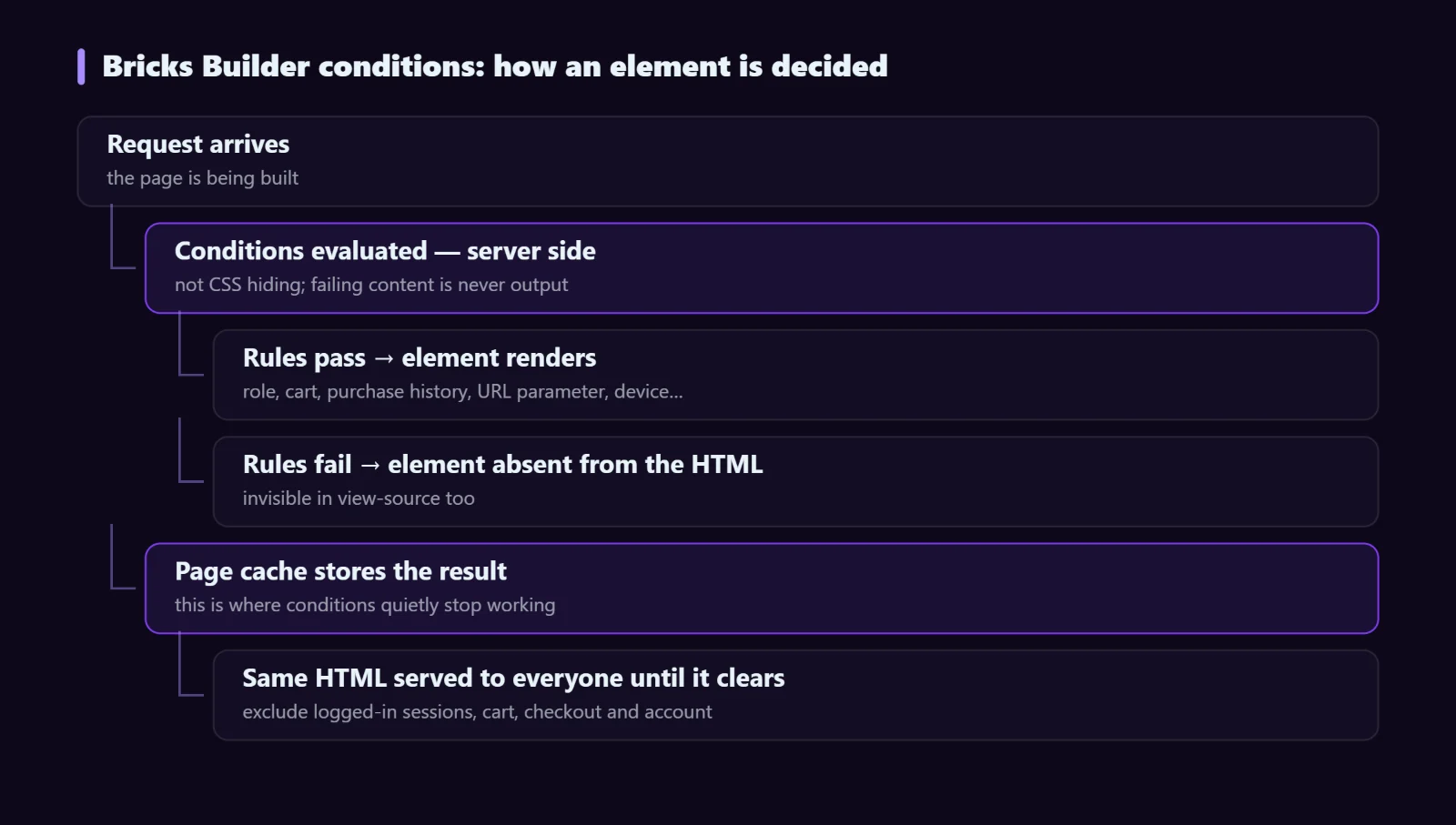
Select any element, open its Conditions panel, add one or more rules. If the rules pass, the element renders. If they do not, Bricks skips it entirely — server-side, not CSS hiding — so that content never reaches the browser and never appears in view-source.
That distinction matters in two directions. It means conditions are safe for content you do not want a curious visitor to read. It also means conditions and full-page caching interact: the cache builds the page once for one visitor state, then serves that same copy to everyone.
The rule types worth knowing
| Group | Rules |
|---|---|
| User | Role, login state, capability |
| Post | Post meta, taxonomy term, author, post type |
| Custom fields | ACF, Meta Box and Pods field values |
| WooCommerce | Product in cart, cart total, previously purchased, stock status |
| Request | URL parameter, cookie, referrer, browser language |
| Device | Mobile, tablet or desktop by screen width |
| Djia | Pro Form field value (live, before submit), active filter state |
| Context | Date and time, page template, archive type, query var |
Six conditions that earn their place
1. Swap the call to action for customers
Two buttons in the same slot. “Buy now” with the condition WooCommerce Purchased = false, and “Open your dashboard” with Purchased = true. Nothing is more corrosive to trust than being sold something you already own.
2. Role-based pricing
Show a wholesale price block to users with the wholesale role and the retail block to everyone else. Because it is server-side, the wholesale price is genuinely absent from the retail page rather than hidden with CSS.
3. Campaign landing variants
Use a URL parameter condition to show a campaign-specific hero when ?src=newsletter is present, and the standard hero otherwise. One page, several entry points, no duplicate content for search engines to sort out.
4. Mobile-only and desktop-only blocks
A device type condition on a heavy desktop visual means mobile visitors never download it. This is the version of responsive design that actually saves bytes, as opposed to display: none, which downloads the image and then hides it.
One caveat: device conditions read the request on the server, so pair them with page-cache rules that vary by device. Otherwise you will serve the mobile version to desktop visitors.
5. Conditional form fields
The Pro Form field value condition evaluates live, before submit. Ask “how many products do you sell?” only once the visitor has picked “Online store”. The multi-step form guide covers this in a full build.
6. Empty-state handling in loops
Put a condition on a “no results” block so it appears only when the query returns nothing. Otherwise a filtered listing simply goes blank, which readers interpret as broken.
Combining rules with AND and OR
Multiple rules on one element combine with a relation you choose. Keep the logic shallow: if you find yourself wanting four rules with mixed AND and OR, it is usually clearer to split into two elements with two simple condition sets. Conditions are invisible in the canvas, and complex logic you cannot see is logic you will misread in three months.
A practical habit: name elements that carry conditions after the condition itself — “CTA (guest)” and “CTA (customer)” — so the structure panel tells you what is going on without opening each one.
Bricks Builder conditions and caching
This is the single biggest source of “my conditions do not work” reports, and it is worth being precise about.
- Login state and role conditions: make sure your cache does not serve cached pages to logged-in users. Most caches exclude logged-in sessions by default; confirm yours does.
- Cart and purchase conditions: exclude cart, checkout and account pages from caching entirely, and be careful with cart conditions on cached pages elsewhere.
- URL parameter conditions: your cache must treat the parameter as part of the cache key, or everyone gets whichever variant was cached first.
- Device conditions: require a cache that varies by device.
Therefore, if a condition depends on something unique to the visitor while the cache serves one copy to everyone, that condition simply cannot work. That is not a bug in the condition; it is the cache doing its job.
Conditions versus interactions
Conditions decide what is rendered when the page is built. Interactions change what is visible after it loads, in response to a click, hover, scroll or form event. Use conditions for “who is this person”, and interactions for “what did they just do”. The Interactions module covers the second with 50+ triggers and 50+ actions, including show/hide, toggling classes and running animations.
Troubleshooting
The element never shows
Check the relation first — several rules set to AND where you meant OR can be impossible to satisfy (role is subscriber AND role is administrator). Then check the compared value for a typo or stray whitespace; meta comparisons are exact.
It works for me but not for visitors
You are logged in and bypassing the cache. Test in a private window.
A numeric comparison behaves oddly
The meta value is stored as a string, so “greater than” compares alphabetically and 9 beats 10. Set the comparison to numeric.
FAQ
Do conditions affect SEO?
Googlebot is an anonymous, logged-out visitor on a desktop-class crawler, so it sees the guest variant. Make sure the content you want indexed sits in that variant. Google never indexes content you show only to logged-in users, which is usually what you want but occasionally a surprise.
Is there a performance cost?
Each rule is a check at render time. Role and login checks are essentially free; a meta or purchase-history check is a query. Dozens of purchase-history conditions on one page will be noticeable.
Can a condition apply to a whole section?
Yes. Put it on the section and Bricks skips everything inside it together, which costs less than repeating the same rule on ten child elements.
Next steps
Conditions, Dynamic Data and Interactions ship together in Djia Bricks. See the feature page for the full rule list, the conditions documentation for setup detail, or read the companion guide on dynamic data tags.