WooCommerce renders product variations as dropdowns, not as WooCommerce variation swatches. For size that is fine. For colour it is actively bad: “Midnight Black” in a select box tells a shopper nothing, and they have to open the dropdown, pick, wait for the image to update, and repeat for every option they are curious about.
Swatches replace the dropdown with the thing itself — a colour circle, a fabric photo, a readable label. This guide sets them up inside Bricks with the Swatches module, on both the single product page and the shop archive.
WooCommerce variation swatches: three types
| Type | Use for | Avoid when |
|---|---|---|
| Colour | Plain colours — a filled circle or square per term | The product is patterned; a flat colour misrepresents it |
| Image | Fabric, wood grain, pattern, print | You do not have a clean, consistent crop per term |
| Label | Size, capacity, length — anything textual | There are more than about ten options; a select is kinder |
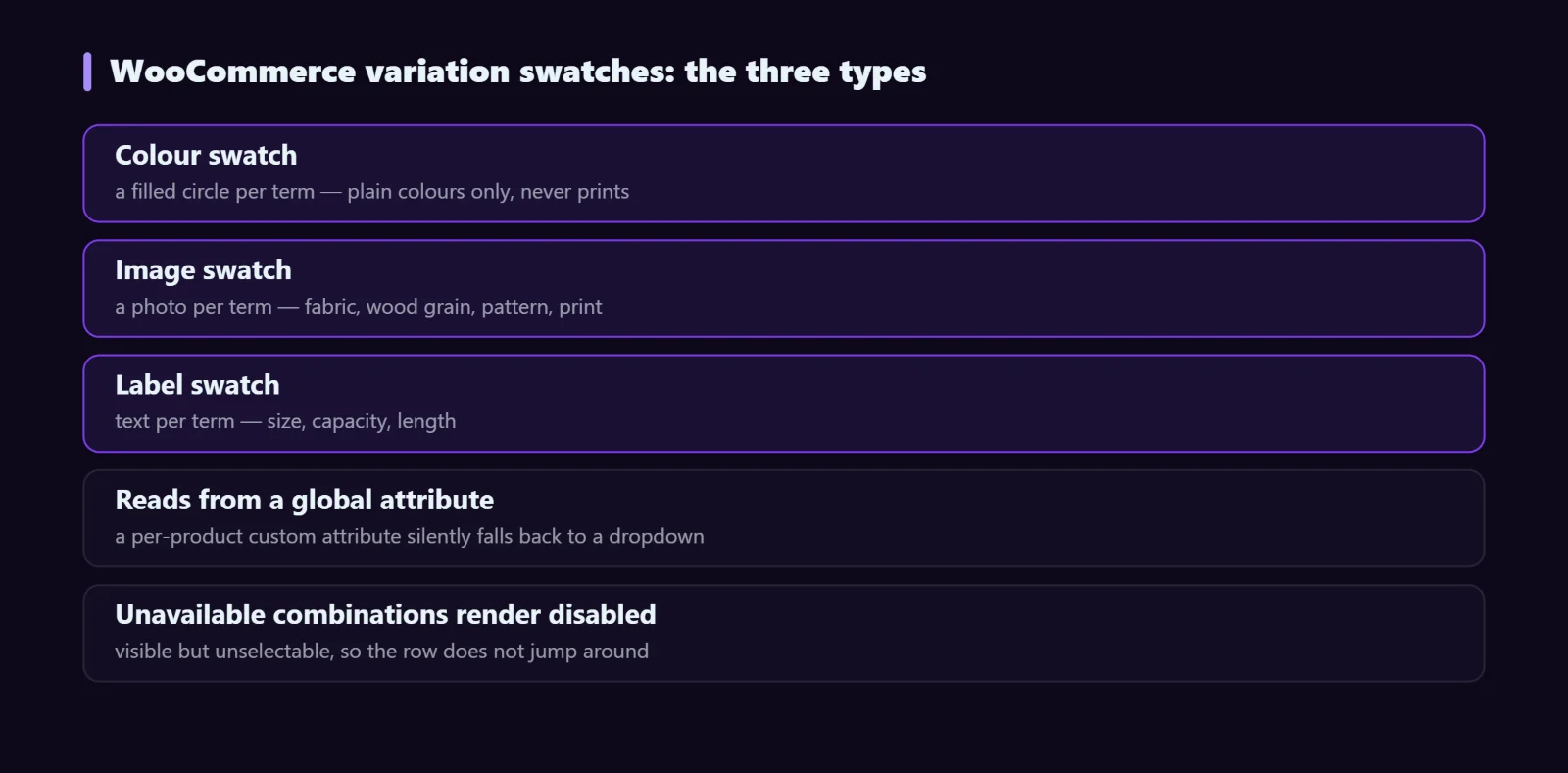
A common mistake is using colour swatches for everything. If a shirt comes in a floral print, a flat pink circle is a promise the product does not keep, and that shows up later as a return.
Step-by-step
1. Set up the attribute properly first
Swatches read from a global attribute, not a per-product custom attribute. In WooCommerce → Products → Attributes, create the attribute (Colour) and add its terms (Midnight Black, Sand, Olive). Then on each product, use that global attribute and generate variations from it.
This step is where most swatch problems begin. A product using a one-off custom attribute typed into the product itself has no terms to attach a colour or image to, so it silently falls back to a dropdown.
2. Enable the Swatches module
Switch on Swatches in the Djia Bricks modules panel. Enable WooCommerce Elements too if you have not already — you will want the gallery element that reacts to the selected variation.
3. Assign a colour or image per term
Edit each attribute term and set its swatch type and value: a hex colour for Colour, an uploaded image for Image, or nothing extra for Label. Do this once per term and every product using that attribute inherits it.
For image swatches, use the same crop and dimensions for every term. Mismatched crops are the difference between a swatch row that looks designed and one that looks like a spreadsheet.
4. Place the swatch element in your product template
In your single-product template, replace the Variation Attributes element with the swatch element, or configure Variation Attributes to render as swatches. Preview against a variable product — on a simple product there is nothing to show and it will look broken when it is not.
If you have not built a custom product template yet, the product page guide covers that first.
5. Add swatches to the shop archive
The Swatches for Loop element shows the same swatches inside a product archive card, so shoppers can see that a product comes in four colours without opening it. Keep the archive version small and non-interactive if your cards are tight on space — its job there is to signal choice, not to be the selector.
Unavailable WooCommerce variation swatches
This is the detail that separates a good swatch implementation from a frustrating one. When a shopper picks “Olive” and only size M is in stock in olive, the other sizes should visibly become unavailable rather than letting the shopper select a combination that then fails.
The module renders unavailable combinations as disabled, which is the behaviour you want: the option stays visible — so the shopper knows it exists and might come back — but cannot be chosen. Hiding it entirely makes the row jump around as selections change, which is worse.
Filtering by swatch on the shop page
Swatches and filters are different features that look similar. A swatch on a product page selects a variation; a swatch in a filter panel narrows the listing. The Djia Filters module provides Colour Swatch and Image Swatch filter elements for the second job, and they are variation-aware, so the result counts reflect actual stock. The WooCommerce filter guide covers that build.
Accessibility
A circle of colour with no text is invisible to a screen reader and ambiguous to anyone with colour vision deficiency. Two things make swatches usable for everyone:
- Keep the term name available — as a tooltip on hover, and as the accessible name for assistive technology. The selected value should also be stated in text somewhere near the swatches (“Colour — Midnight Black”).
- Do not rely on a border alone to show selection. Combine the outline with a second cue such as a check mark or a clear offset ring, and make sure the focus state is visible for keyboard users.
Troubleshooting
Swatches show as a dropdown
The product uses a custom per-product attribute instead of a global one. Recreate the attribute globally and regenerate the variations.
Some terms have no colour
The swatch value was never set on that term. Terms created automatically during a CSV import often have no swatch value — check the full term list after any import.
The main image does not change with the selection
Either the variation has no image of its own in WooCommerce, or the template uses the plain Product Image element. Use Product Gallery Slider, which switches with the variation.
Swatches work on the product page but not in the archive
The archive card is missing the Swatches for Loop element. The two are separate elements for separate contexts.
FAQ
Can one product use colour swatches and label swatches together?
Yes. The type is set per attribute, so Colour renders as circles and Size as labels on the same product.
Will this slow the shop page down?
Colour and label swatches add almost nothing. Image swatches add one request per term, so compress them and keep them small — a 40px swatch does not need a 1200px source file.
What happens to swatches if I disable the module?
Variations fall back to standard WooCommerce dropdowns. The attribute data and the per-term colours stay in the database, so re-enabling restores everything.
Next steps
Swatches is one of six WooCommerce modules included in every Djia Bricks licence, alongside the product, cart, checkout, account and compare tooling. See the WooCommerce feature page, read the documentation, or pick a licence.